


-
Professional Stage Lighting >> Moving Head Light >> iDMX AI Console
iDMX AI Console
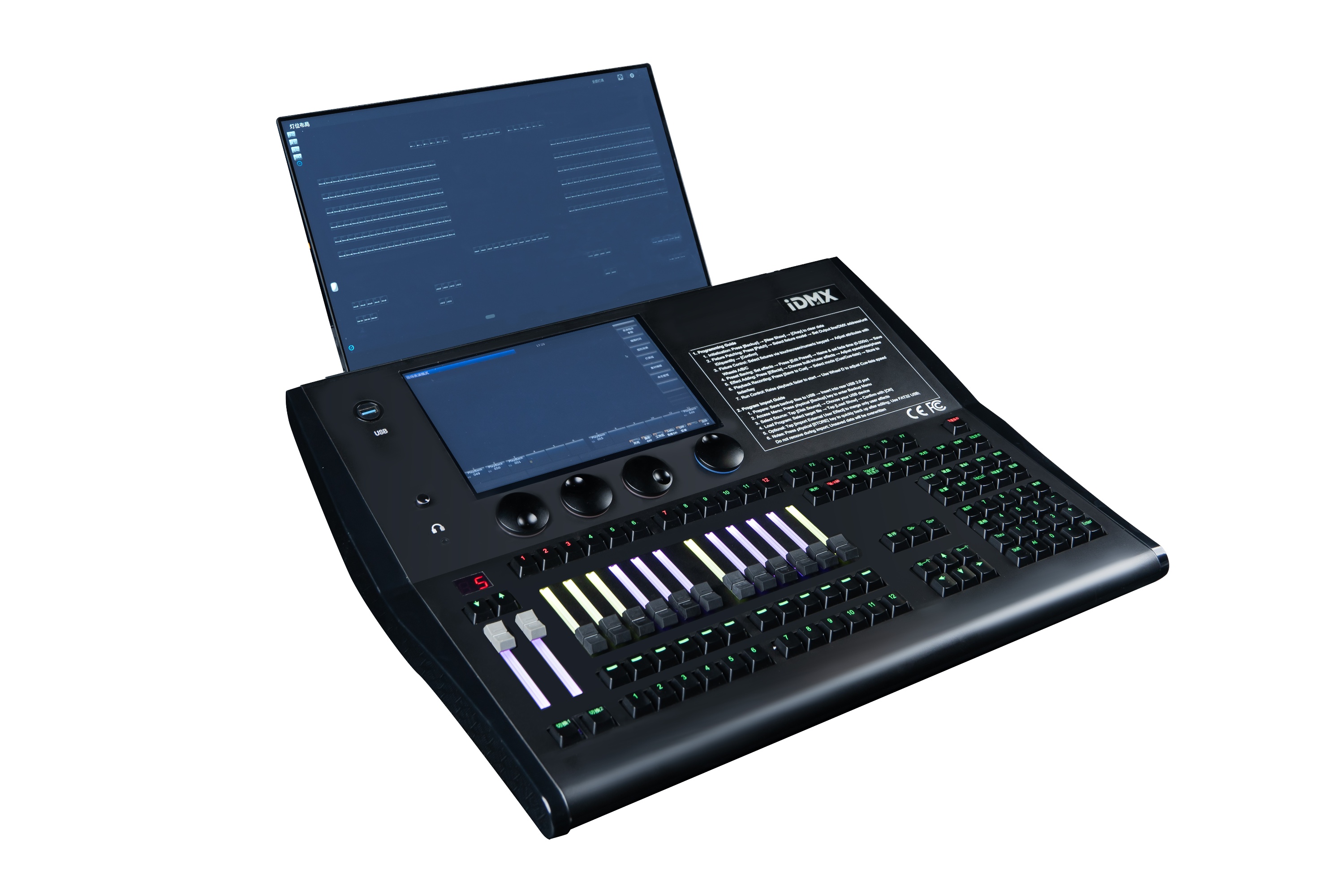


iDMX AI Console
Two touch screen,Fast and Easy programe, Max 8 Universes, 4096ch
Price: Inquiry Now
Inquiry:
Features
4096ch
Universes: 2 built-in, 8 By Artnet
80 pagesx12 fader
A lot of Built-in Effects
support all brands all kinds of lights
Related Resources:  Catalog
iDMX AI Console More Video 1
iDMX AI Console More Video 2
iDMX AI Console More Video 3
iDMX AI Console More Video 4
iDMX AI Console More Video 5
Description
Main Parameter:Universes: 2 built-in dmx, 8 by Artnet
4096ch maxiuum
Two touch screen: 10.1" on the console + 15.6" extra touch screen
80 pages x 12 fader
Built-in shape for color and tilt
System
Linux
Profiles
Support MA2 and Avolite profile
Profile Extentions: XML , D4 , R20
in the console has most of lights in the market, we can write profile for you if the file doesn't exist in the console
Size and Weight
Power supply: AC100-240V, 50-60Hz.
Size: 22.44" × 17.52" × 5.98" = 570mm × 445mm × 152mm
Flight case package: 24x28x13 inches 73 lbs
Package Included:
Flight Case
Two touch screen
16G USB disk
Fast programming
Patch → built-in effects → save to cue → multi steps → macro show with music
1. Clear the console when its new (recommended)
Open Backup, tap [New Show], confirm. and name your file.
2.Patch the lights
Press Patch, then [Patch New Fixture]. Select the light from the console system(many brands lights) or from USB, set quantity and start address (the console show the next free address automaticly). Tap [Confirm]. Repeat until every light is patched.
3.Select lights and light up
In the Fixtures Layout window, select the lights you want. Double?tap Locate or press F1 / [Full] on the screen to turn them on in a default position.
4.Program the first step
1. Use the attribute keys and wheels AC for pan/tilt, dimmer, color, gobo, prism, etc.
2. Add Effects or Color Picker for the lightsbuilt-in position effects, color effects, and more make programming easy.
3. You can also use the [Fixture Attributes] window to draw dmx or shape to program.
5.Save one step to a fader (single cue)
Press Save to Cue. Then press a playback key (the key for a fader or a fixed playback). That stores this program on that playback.
6.Save multi steps on one fader (cue list)
Repeat steps 4 and 5 to build a multi-step program. (For 2nd step, Dont forget to select the Save to Last Step button on screen.)
7.Adjust the time of each step
You can adjust each steps time, including Delay-In, Fade-In, Out-Delay, Out-Fade, and Overlap.
8.Record a show with music
Open the [Macro show], [Time Code], and [Music Player] windows. In [Time Code], select Internal Music mode as the timecode source, choose the music you want, then press Record button(in the Time Code window) to record the show with music.
9.Save your show file
Press Backup → [Save Show]. Or Press [Store] button before you turn off the console
For more details, please check http://iDMX.ai
Summary

Inquiry for iDMX AI Console
We will reply you in 24 hours, and please feel free to call +1-(323)287-5559 or email to sales@artfox.net


